How to add shopify partner users in the shopify?
How to add shopify partner users in the shopify?
You can authorise the shopify partner account to the staff permissions in Shopify by adding a new staff member through the Users and permissions section of your Shopify admin dashboard.
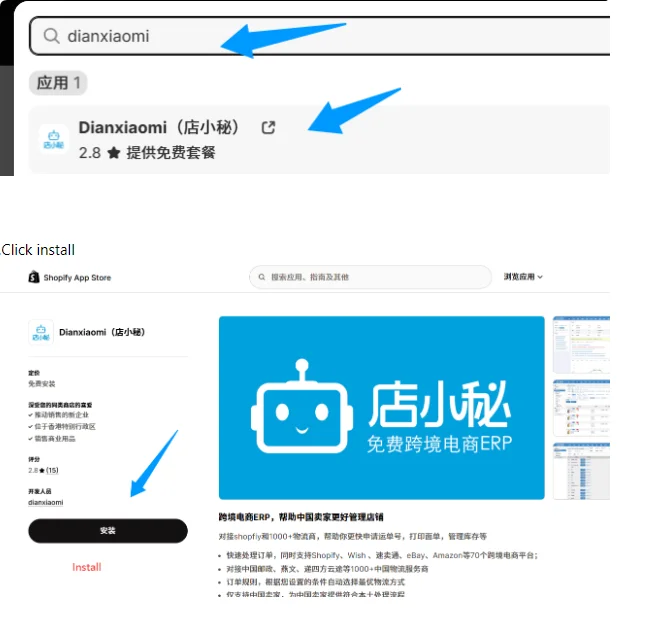
In order to help us to manage the order and sync the tracking number in the shopify, pls install “dianxiaomi” firstly, then add the user and permission to our shopify partner account.
Step 1: Search “dianxiaomi” in shopify app and install it.
Step 2: Log in to your Shopify store admin page.
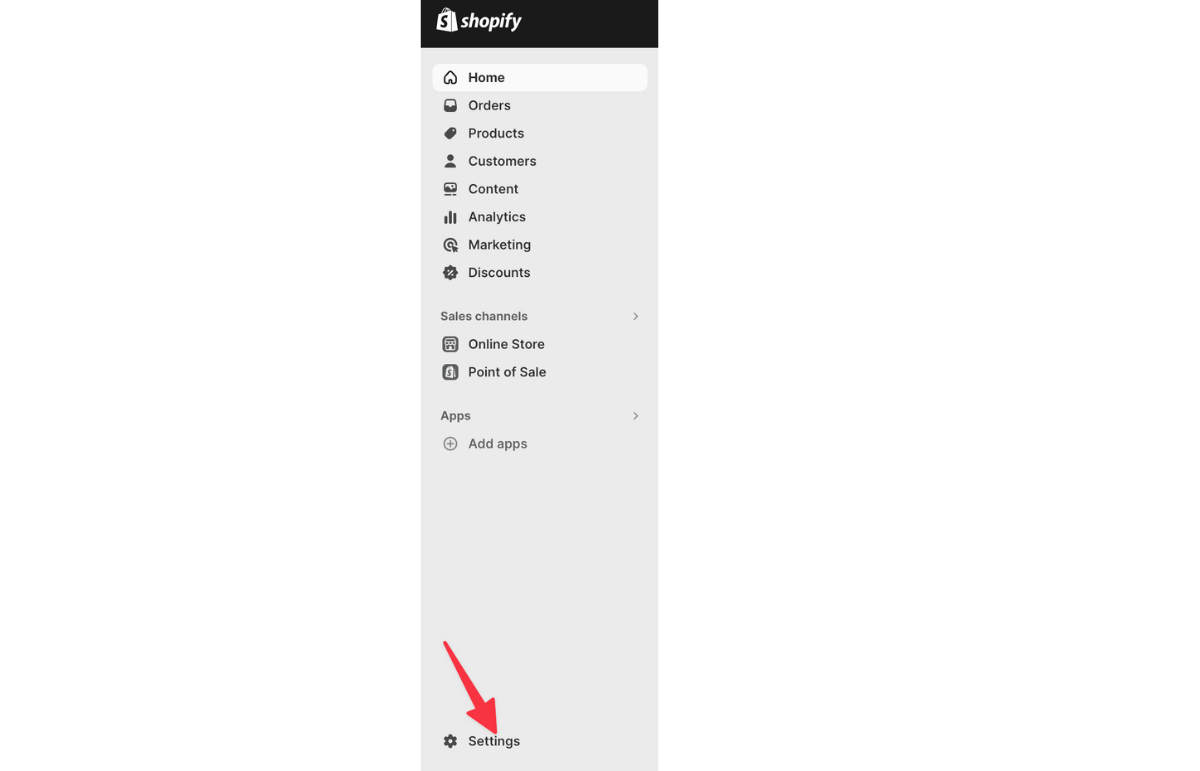
Step 3: Click on “Settings” at the bottom of the menu on the left.
Step 4: Select “Users and permissions.”
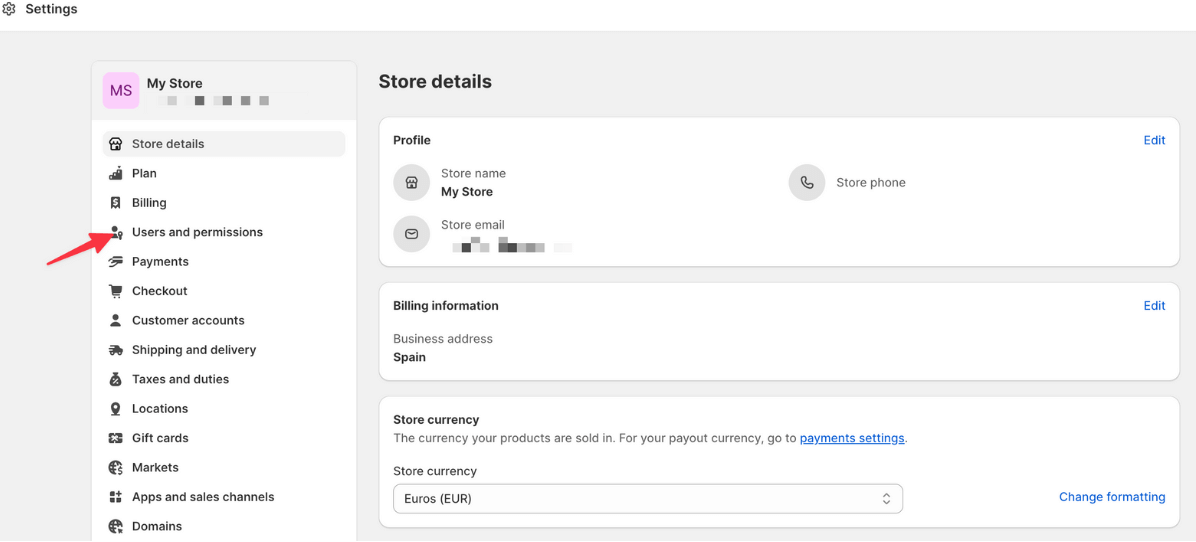
Step 5: Click “Add Staff” to add a new person.
Step 6: Enter the staff member’s name and email address. The email address is the shopify partner email.
Step 7: Choose the permissions of the “orders” and “dianxiaomi”
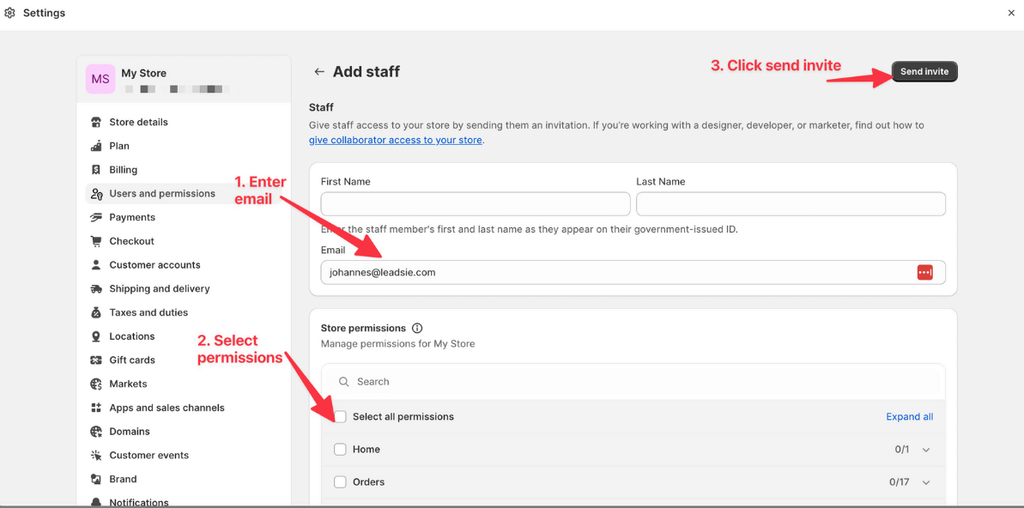
Step 8: Click “Send Invite” once you’ve set the right permissions.
Your staff member will get an email invitation. They must follow the steps to create a staff account or log in with their Shopify ID.
🔎 Note: If you need to find your Shopify Store ID, you can usually find it in your browser URL after logging in to Shopify. It appears after /store/ in URLs.
Important Notes:
- Invitations expire after 7 days, so follow up if they don’t accept it in time.
- The number of staff members you can add depends on your Shopify plan, so double-check your limit.